OsstellConnect

提高种植体治疗效果

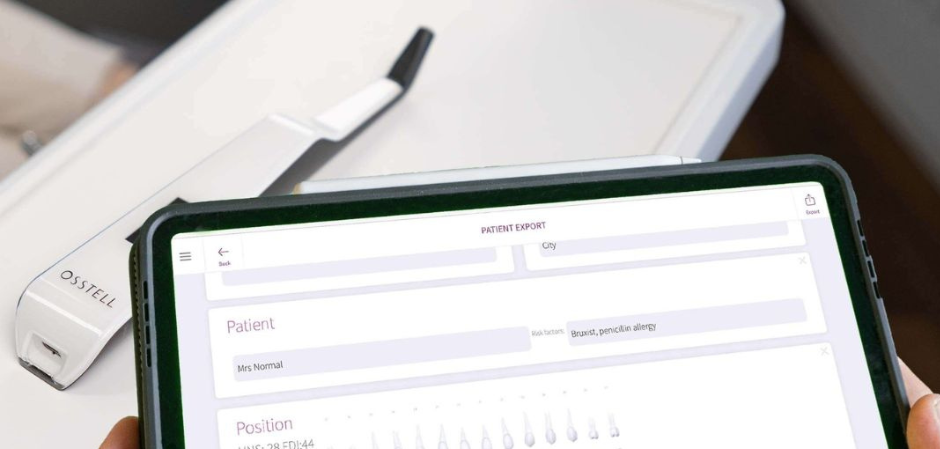
OsstellConnect是一种免费的基于云的解决方案,为临床医生提供了一种新方法,通过数据提高牙种植体治疗效果。它是世界上最大的种植体在线门户,拥有超过25万个数据点。OsstellConnect目前是免费的,可供Osstell Beacon和Osstell IDx访问。

Beacon & OsstellConnect

临床性能

此工具将帮助您规划并针对患者特征和种植体治疗制定决策,优化不同临床情况和种植体的愈合期。追踪Osstell ISQ随着时间推移的结果。轻松访问您的患者记录和治疗效果。

患者信心

此方法能够在患者报告中增强成功治疗的保证和信心(患者可以保存此报告)。

转介沟通

此方法将患者的种植体和骨整合性能告知转诊临床医生,并提供审核途径以继续治疗随访

社区

加入OsstellConnect社区,这里汇聚了成千上万的临床医生,为每位患者提供最佳的牙齿治疗时间。社区坚信数据和临床证据能够确保最佳实践方法。

可行性见解

此工具可帮助您追踪统计数据以了解治疗方法并改善疗效。获得临床见解,助您为患者规划最佳治疗方案。

免费注册

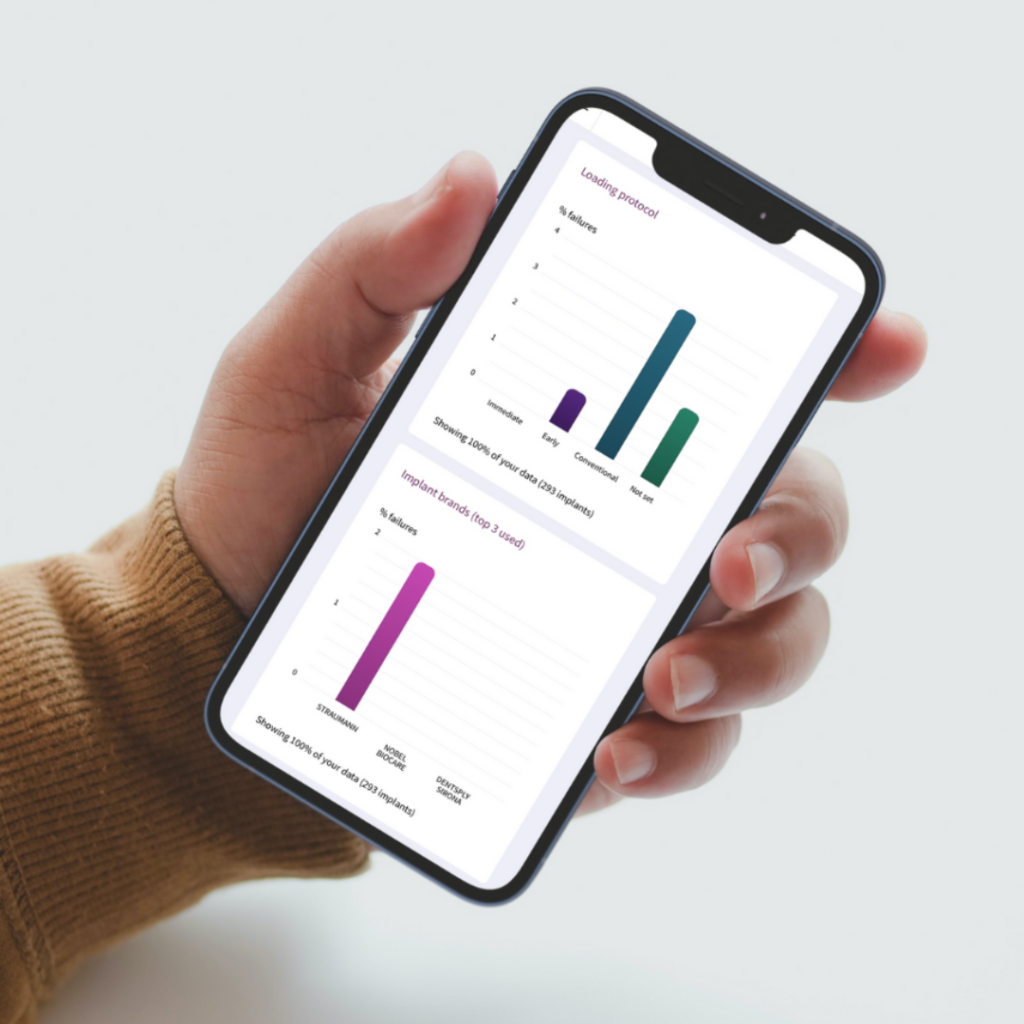
云数据可帮助您做出治疗决策

了解负重方案、您使用的种植体品牌以及您的患者风险属性会如何影响患者的个人愈合时间。

免费注册

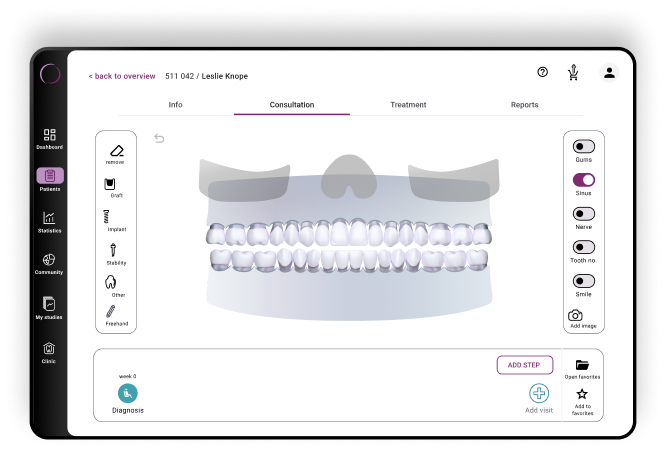
通过 Consultation Tool 实现轻松沟通

借助 OsstellConnect 中新增的 Consultation Tool,您能够以基于科学、易于理解的方式轻松描述建议手术的不同步骤,从手术到最终修复,并估计不同流程之间的时间。对于经常发生的情况,这有助于减轻患者因不自信而产生的焦虑。

免费注册
简便、快捷、精准 – 全能应用程序

发现更新的 OsstellConnect 应用程序:现在已针对移动设备和平板电脑进行优化。凭借改进的扫描技术,扫描您的种植体盒,以获得即时详细的见解。通过您的 Beacon 体验简化的问诊过程,访问临床数据并轻松记录 ISQ 读数 — 无需 Osstell 密钥。现在支持更广泛的种植体品牌,我们的应用程序可节省您的宝贵时间,提高准确性,且无需手动输入。

在此下载
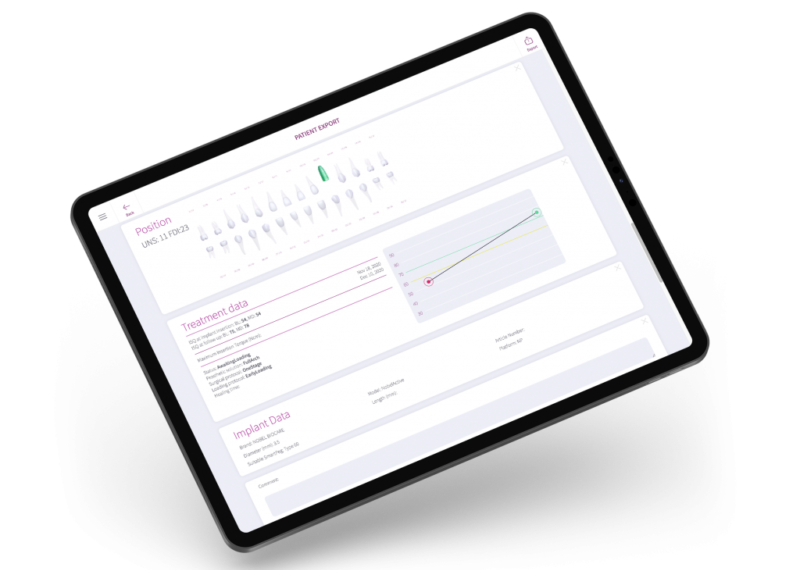
OsstellConnect App
OsstellConnect Statistics

Frequently asked questions

Got a question regarding OsstellConnect? Our FAQ is the fastest way to get help. Below you will find the most frequently asked questions regarding OsstellConnect. If you can’t find the answer you are looking for, don’t hesitate to contact us.

How can I find my registration code?

Osstell Beacon
• To find your registration code, please make sure that you have already installed the Beacon Gateway. If you have not installed it yet, please navigate to your clinic in your account, click the instruments tab and download the gateway. Install it.
• Take your instrument in hand. It is now connecting to OsstellConnect and you should see a symbol animating. Please note that it can take a few seconds.
• When connected, the symbol stops animating.
• The registration code is now displayed on the lower screen of your instrument.

Osstell IDx
• When turning on your Osstell IDx for the first time, you will be prompted to select language, time zone, date and time.
• After that, you will need to set up a 4-digit pin code and a backup password. The backup password is needed when restoring to a backup, so please note it down and save it in a safe place.
• Your registration code is now displayed on your Osstell IDx.

How can I find the serial number (SN)?

You can find the serial number on the back of your instrument.

How can I update the software of my Osstell IDx?

Navigate to your clinic in your account. Select the instrument tab. Click on Download firmware.
Download instructions:

• Wait for the download to complete (could take a while depending on your connection)

• Copy the .m2f binary file to a USB memory stick

• Insert the memory stick in your IDx while it is running

• Follow instructions on the IDx display

Note: you cannot open or view the .m2f file
You can also check this guide

如何将 Osstell IDx 中的数据上传到 OsstellConnect?

如果 Osstell IDx 已联网,其中的数据会自动上传到您的 OsstellConnect 帐户。如需将设备联网,请按照此处的说明操作。

请注意,您还可以创建备份,例如备份到 U 盘。请按照此处的说明进行操作。


https://osstell.com/app/uploads/How-to-connect-to-the-Internet-6.0.pdf

https://osstell.com/app/uploads/Backup-Osstell-IDx-6.0.pdf

How should I document an implant failure?

• To document an implant failure, go to your patients records. Select the patient, then select the tooth. Click ‘Mark as failed’. Choose the type of failure (early or late failure), fill in the failure date. Choose the reason for failure. Click ‘Mark as failed’.

• You can access the history of the implant failure by navigating to the history tab. Click the tab ‘Failed’ to see all information related to the treatment and the failure.

• A history symbol is displayed on the tooth with a failed implant.

如何在基牙上测量并记录 ISQ?

您可以在 OsstellConnect 中记录基牙水平的 ISQ 值,但必须遵循正确的临床测量流程,以获取准确的测量结果。

如何测量基牙水平的 ISQ 值

  1. 在安装基牙之前,先进行种植体水平测量。
  2. 在同一次治疗过程中,使用专用于基牙水平测量的 SmartPeg 再次进行基牙水平测量。
  3. 记录种植体水平 ISQ 值与基牙水平 ISQ 值之间的差值,以确定偏移值。该偏移值在整个愈合过程中保持稳定,后续解读随访测量结果时应使用该偏移值。
  4. 在之后的所有复诊中,在基牙处进行测量,并应用相同的偏移值,即可了解种植体真实的 ISQ 值。

如何在 OsstellConnect 中记录测量结果:

  1. 进入患者注册页面,在牙位图中选择患者和种植体。点击“添加基牙”,选择基牙并保存。
  2. 选择“测量稳定性”,并在“测量水平”下选择“基牙”。按照种植体水平测量的方法,在基牙处进行测量并保存。
  3. 如需查看稳定性趋势,请打开“稳定性”选项卡,并切换“显示基牙”。您还可以启用“显示详情”,查看颊舌向和近远中向 ISQ 值。

如需更详细的说明和临床指导,请参阅此处的博文。

Can I delete a measurement?

Yes, simply navigate to your patient records. Select the patient. Select the implant. Go to the stability tab. Click on the edit icon by the measurement you would like to delete. Click delete. Please note that the measurement will be permanently removed from the patient chart.

Can I delete a patient?

Yes, simply navigate to your patient records. Select the patient you would like to delete. Click delete in the upper right corner. Confirm that you want to delete the patient and all data. Please note that it will be permanently removed from your account.

能否导出我所有的数据?

可以。您可以将所有数据导出为 Excel 文件,供进一步分析。只需进入患者记录并点击 CSV 导出即可。该文件会出现在您的下载文件夹中。

请确保所有导出的数据均按照适用的数据保护法规进行处理,例如《GDPR》或《HIPAA》。

Can I manually edit implant data?

Yes, simply navigate to your patient records. Select the patient. Select the implant you want to edit on the tooth chart. Select the tab ‘Implant & abutment’. Click on the pen icon to edit. Edit implant data. Save.

如何将 Osstell Beacon 连接到 OsstellConnect 并直接记录数据?

在开始前,请确保您已安装 Beacon Gateway。如果尚未安装,请在帐户中进入您的诊所页面,点击器械选项卡并下载网关。进行安装。

  • 将 Osstell Key 插入计算机的 USB 端口。
  • 手持器械。此时器械正在连接到 OsstellConnect,您应当会看到以下符号正在闪烁。请注意,连接可能需要几秒钟。
  • 连接成功后,该符号将停止闪烁。
  • 进入患者记录。
    • 如果是首次测量,请创建患者记录。填写患者信息并保存。点击“新建治疗”,填写治疗信息。点击“添加种植体”,填写种植体信息并保存。点击“测量稳定性”。
    • 如果是随访测量,请选择患者,然后在牙位图中选择牙齿。点击“测量稳定性”。
  • 在颊舌向进行测量。此时 ISQ 值会显示在 OsstellConnect 中。
  • 在近远中向进行测量。此时 ISQ 值会显示在 OsstellConnect 中。
  • 填写治疗相关信息并保存。
How can I edit patient data?

Simply navigate to your patient records. Select the patient. Click ‘edit’ on the top right corner. Edit the data and save.

其他产品

SmartPeg

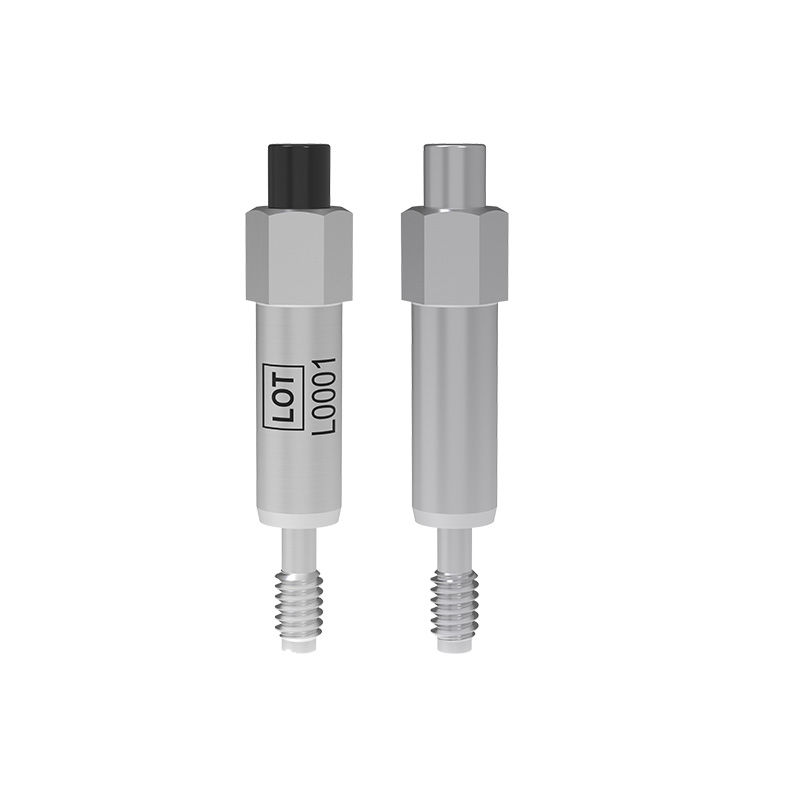
SmartPeg™连接到种植体并与Osstell IDx、Osstell Beacon或Osstell ISQ测量仪结合使用。
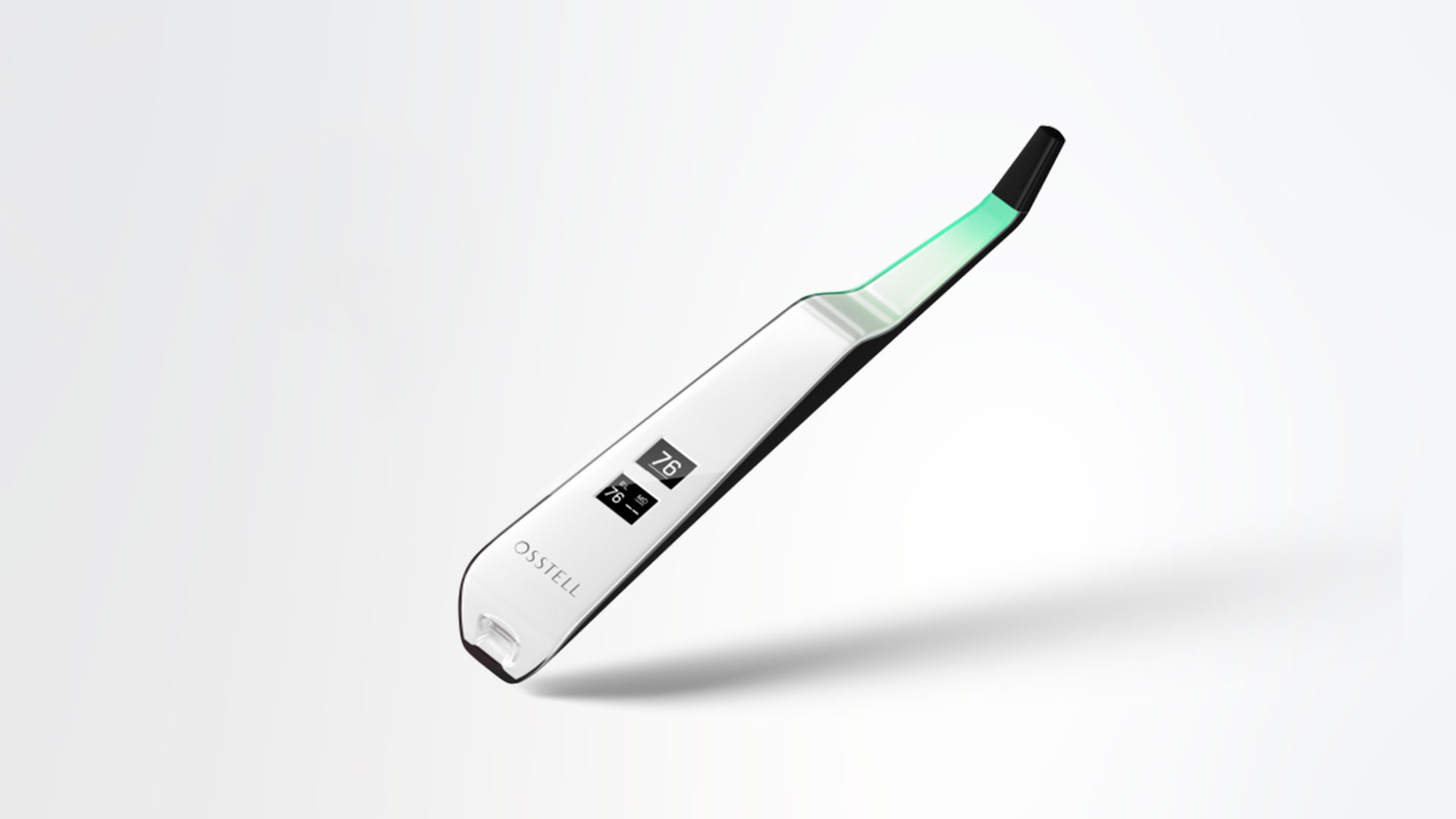
Osstell Beacon

Osstell Beacon 可帮助您客观确定种植体稳定性。