OsstellConnect

Mejore sus tratamientos con implantes

OsstellConnect es una solución gratuita basada en la nube que ofrece a los médicos una nueva manera de utilizar los datos para mejorar sus tratamientos con implantes dentales. Se trata del portal en línea de implantes más grande del mundo, con más de un cuarto de millón de puntos de datos. Actualmente, OsstellConnect es gratuito y los usuarios de Osstell Beacon y Osstell IDx pueden acceder a él.
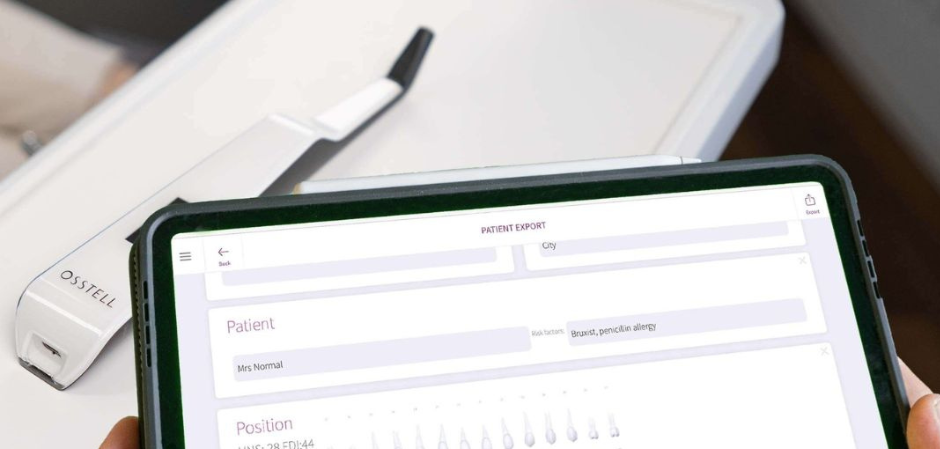
Beacon & OsstellConnect

OsstellConnect

Rendimiento clínico

Una herramienta que le ayuda a planificar y tomar decisiones relacionadas con las características de los pacientes y los tratamientos con implantes, para optimizar los períodos de curación para diferentes situaciones clínicas e implantes. Realice un seguimiento del progreso de Osstell ISQ a lo largo del tiempo. Fácil acceso a los registros y tratamientos de los pacientes.

Confianza para los pacientes

Una manera de brindar tranquilidad y confianza a los pacientes en cuanto al éxito del tratamiento en un informe que pueden conservar.

Comunicación de remisiones

Una manera de informar a los médicos remitentes sobre los implantes y el progreso de la osteointegración de los implantes de un paciente y proporcionar una vía de inspección para continuar con el seguimiento del tratamiento

Comunidad

Únase a la comunidad de OsstellConnect que reúne a miles de médicos que proporcionan a cada uno de sus pacientes tiempos óptimos en el tratamiento dental. Esta comunidad confía en el poder de los datos y la evidencia clínica para garantizar los mejores abordajes prácticos.

Información aplicable

Una herramienta que le ayuda a realizar un seguimiento de sus estadísticas para comprender y mejorar los métodos y el nivel de éxito de los tratamientos. Obtenga acceso a información clínica que le ayudará a planificar el mejor tratamiento para sus pacientes.

Regístrese gratis

Datos en la nube que le ayudan a tomar decisiones de tratamiento

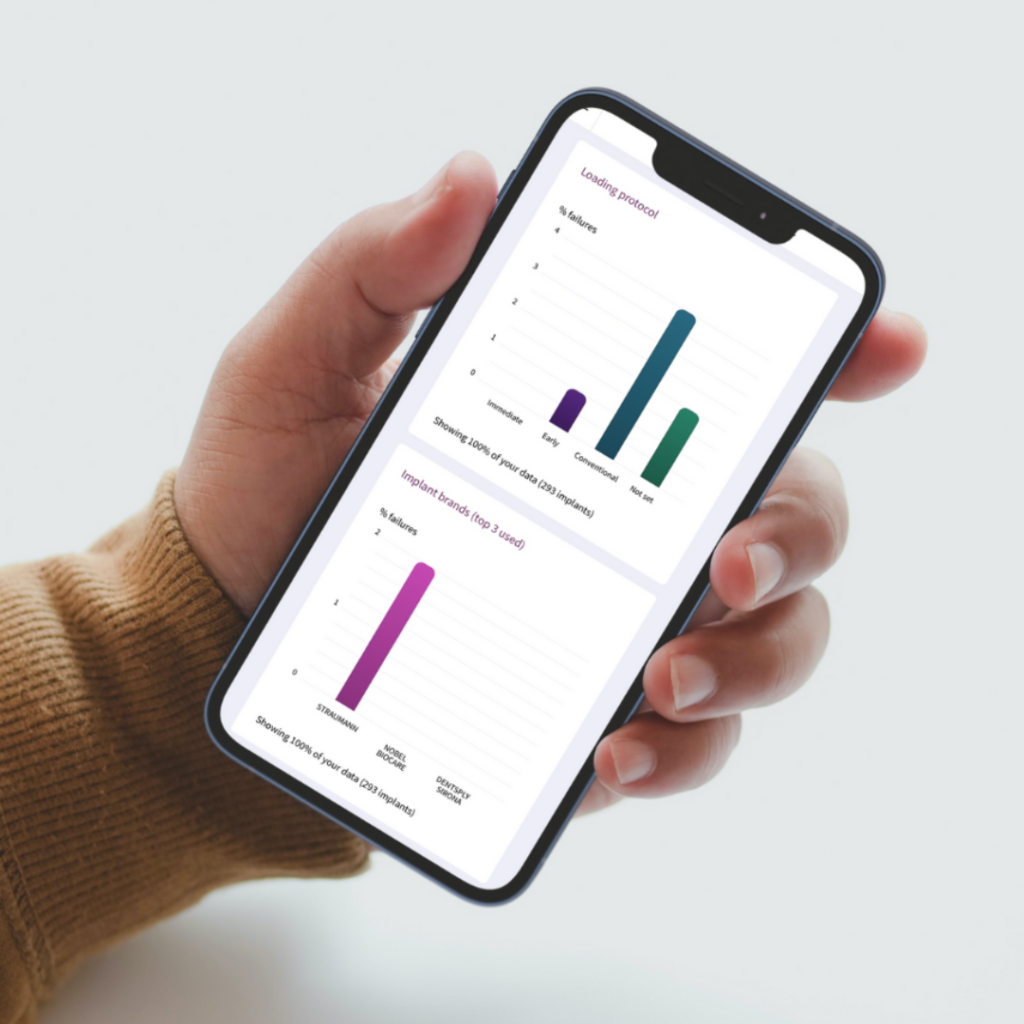
Obtenga información sobre cómo la carga de protocolos, las marcas de implantes que utiliza y las características de riesgo de sus pacientes afectan el tiempo de curación particular de los pacientes.

Regístrese gratis

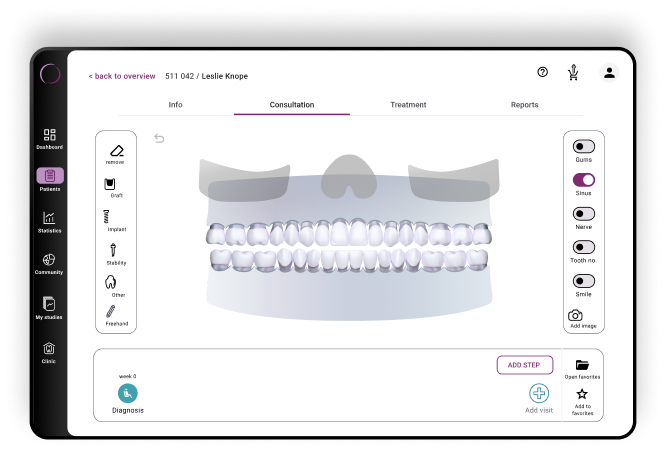
Comunicación sencilla gracias a la ConsultationTool

Con la ConsultationTool en OsstellConnect, puede describir fácilmente los distintos pasos de un procedimiento propuesto de forma científica y fácil de entender, desde la cirugía a la restauración final, con estimaciones de tiempo entre los distintos procedimientos. De esta forma, se calma la ansiedad del paciente que no siente confianza en la situación, como puede ocurrir habitualmente.

Regístrese gratis
Fácil, rápido, preciso: todo en una aplicación

Descubra la aplicación OsstellConnect actualizada: ahora optimizada para móviles y tablets. Gracias a la tecnología de escaneado mejorada, escanee la caja de implantes para obtener información detallada de inmediato. Disfrute de un proceso de consulta simplificado, acceda a datos clínicos y registre las lecturas de ISQ sin esfuerzo con nuestro Beacon, sin necesidad de Osstell Key. Ahora compatible con una gama más amplia de marcas de implantes, la aplicación le ahorra tiempo y aumenta la precisión sin necesidad de introducir datos manualmente.

Descargar aquí
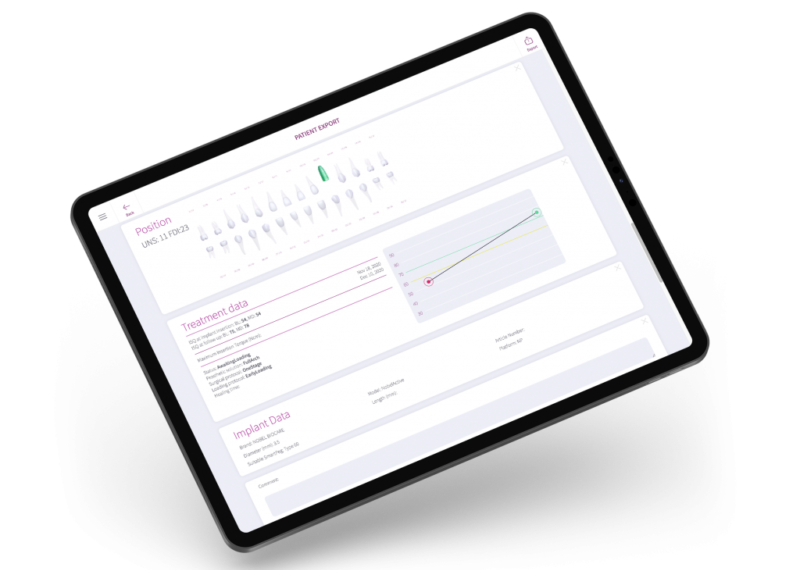
OsstellConnect App
OsstellConnect Statistics

Frequently asked questions

Got a question regarding OsstellConnect? Our FAQ is the fastest way to get help. Below you will find the most frequently asked questions regarding OsstellConnect. If you can’t find the answer you are looking for, don’t hesitate to contact us.

How can I find my registration code?

Osstell Beacon
• To find your registration code, please make sure that you have already installed the Beacon Gateway. If you have not installed it yet, please navigate to your clinic in your account, click the instruments tab and download the gateway. Install it.
• Take your instrument in hand. It is now connecting to OsstellConnect and you should see a symbol animating. Please note that it can take a few seconds.
• When connected, the symbol stops animating.
• The registration code is now displayed on the lower screen of your instrument.

Osstell IDx
• When turning on your Osstell IDx for the first time, you will be prompted to select language, time zone, date and time.
• After that, you will need to set up a 4-digit pin code and a backup password. The backup password is needed when restoring to a backup, so please note it down and save it in a safe place.
• Your registration code is now displayed on your Osstell IDx.

How can I find the serial number (SN)?

You can find the serial number on the back of your instrument.

How can I update the software of my Osstell IDx?

Navigate to your clinic in your account. Select the instrument tab. Click on Download firmware.
Download instructions:

• Wait for the download to complete (could take a while depending on your connection)

• Copy the .m2f binary file to a USB memory stick

• Insert the memory stick in your IDx while it is running

• Follow instructions on the IDx display

Note: you cannot open or view the .m2f file
You can also check this guide

¿Cómo puedo subir datos desde mi Osstell IDx a OsstellConnect?

Los datos de Osstell IDx se cargan automáticamente en su cuenta de OsstellConnect si tiene conexión a Internet. Para conectar su dispositivo a Internet, siga las instrucciones que se indican aquí.

Tenga en cuenta que también puede crear copias de seguridad, por ejemplo, en una memoria USB. Siga estas instrucciones.

How should I document an implant failure?

• To document an implant failure, go to your patients records. Select the patient, then select the tooth. Click ‘Mark as failed’. Choose the type of failure (early or late failure), fill in the failure date. Choose the reason for failure. Click ‘Mark as failed’.

• You can access the history of the implant failure by navigating to the history tab. Click the tab ‘Failed’ to see all information related to the treatment and the failure.

• A history symbol is displayed on the tooth with a failed implant.

How do I measure and record ISQ on an abutment?

You can record ISQ at abutment level in OsstellConnect, but it is important to follow the correct clinical measurement procedure to obtain accurate values.

How to measure ISQ at abutment level

  1. Perform an implant level measurement first, before placing the abutment.
  2. Measure again at abutment level during the same session, using a SmartPeg made for abutment level measuring.
  3. Determine the offset by noting the difference between implant level and abutment level ISQ. This offset remains stable throughout healing and should be used when interpreting follow-up measurements.
  4. For all subsequent visits, measure on the abutment and apply the same offset to understand the true implant ISQ.

How to record the measurement in OsstellConnect:

  1.  Go to the patient’s register, select the patient and the implant in the tooth chart. Click ‘Add abutment’, choose the abutment, and save.
  2. Select ‘Measure stability’ and choose ‘Abutment’ under Measurement level. Measure on the abutment as you would at implant level and save.
  3. To review the stability trend, open the Stability tab and toggle ‘Show abutment’. You can also enable ‘Show details’ to view buccal–lingual and mesial–distal ISQ values.

For a more detailed explanation and clinical guidance, see our blog post here.

Can I delete a measurement?

Yes, simply navigate to your patient records. Select the patient. Select the implant. Go to the stability tab. Click on the edit icon by the measurement you would like to delete. Click delete. Please note that the measurement will be permanently removed from the patient chart.

Can I delete a patient?

Yes, simply navigate to your patient records. Select the patient you would like to delete. Click delete in the upper right corner. Confirm that you want to delete the patient and all data. Please note that it will be permanently removed from your account.

¿Puedo exportar todos mis datos?

Sí, puede exportar todos sus datos a un archivo de Excel para analizarlos más a fondo. Solo tiene que ir a los registros de los pacientes y pulsar «CSV export» (Exportar en CSV). El archivo aparecerá en su carpeta de descargas.

Asegúrese de que los datos exportados se traten de conformidad con la normativa aplicable en materia de protección de datos, como el RGPD o la HIPAA.

Can I manually edit implant data?

Yes, simply navigate to your patient records. Select the patient. Select the implant you want to edit on the tooth chart. Select the tab ‘Implant & abutment’. Click on the pen icon to edit. Edit implant data. Save.

¿Cómo puedo conectar mi Osstell Beacon a OsstellConnect y registrar datos directamente?

Antes de empezar, asegúrese de que ya tiene instalado Beacon Gateway. Si aún no lo ha instalado, vaya a la sección de su clínica en su cuenta, haga clic en la pestaña «Instruments» (Instrumentos), descargue Gateway e instálelo.

  • Conecte Osstell Key a un puerto USB de su ordenador.
  • Tome el instrumento en la mano. Ahora se está conectando a OsstellConnect y debería ver el siguiente símbolo en movimiento. Tenga en cuenta que puede tardar unos segundos.
  • Cuando está conectado, el símbolo deja de moverse.
  • Vaya a los registros de los pacientes.
    • Si se trata de la primera medición, cree un paciente. Rellene los datos del paciente y guarde. Haga clic en «New Treatment» (Nuevo tratamiento) y rellene la información del tratamiento. Haga clic en «Add implant» (Añadir implante), rellene los datos del implante y guarde. Haga clic en «Measure stability» (Medir estabilidad).
    • Si se trata de una medición de seguimiento, seleccione al paciente y, a continuación, el diente en el odontograma. Haga clic en «Measure stability» (Medir estabilidad).
  • Mida en la dirección bucolingual. El valor ISQ ya aparece en OsstellConnect.
  • Mida en la dirección mesiodistal. El valor ISQ ya aparece en OsstellConnect.
  • Rellene la información sobre el tratamiento y guarde.
How can I edit patient data?

Simply navigate to your patient records. Select the patient. Click ‘edit’ on the top right corner. Edit the data and save.

Explore nuestros productos

SmartPeg

El SmartPeg™ se conecta al implante y se utiliza junto con los instrumentos de medición Osstell IDx, Osstell Beacon u Osstell ISQ.
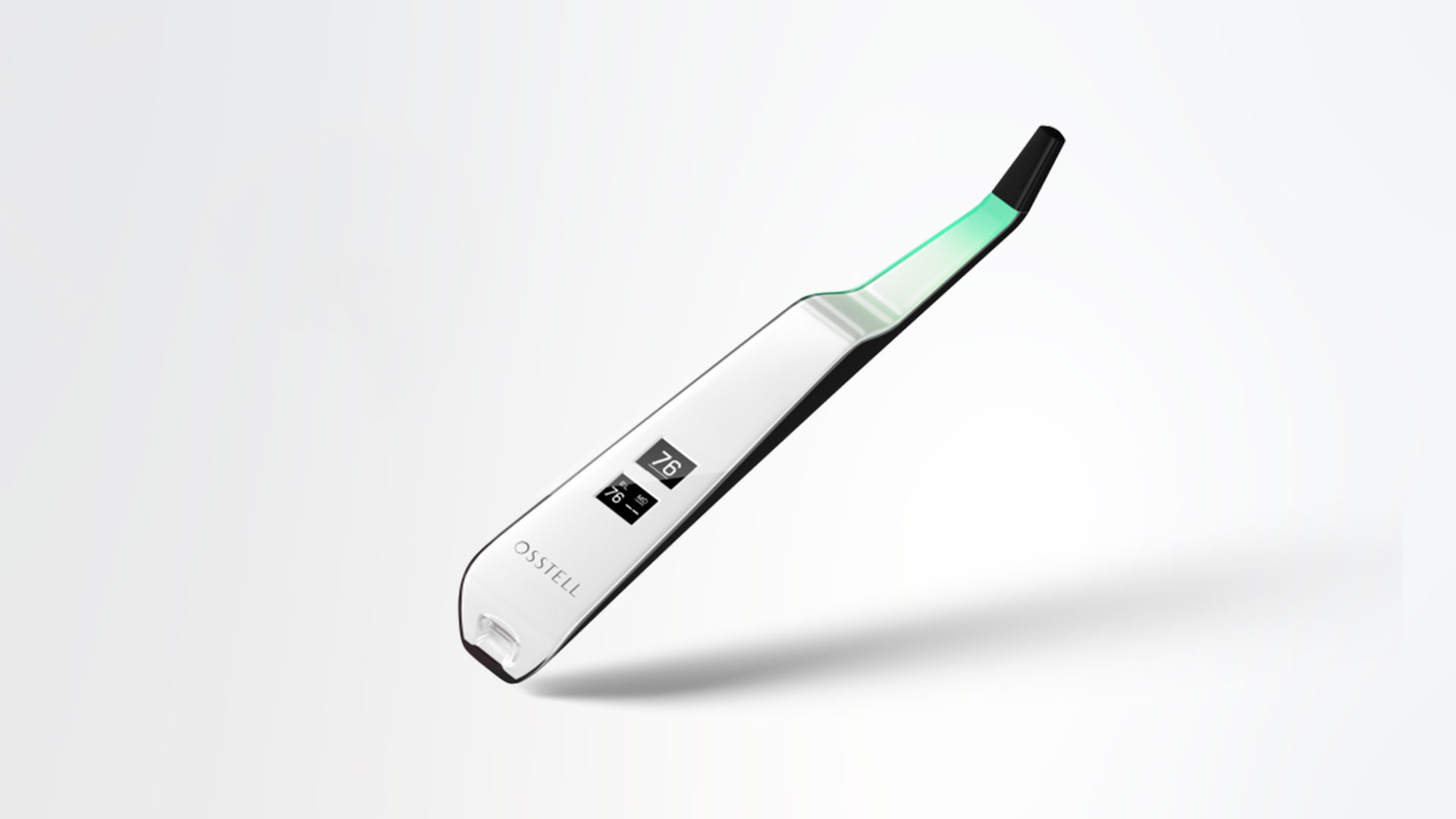
Osstell Beacon

Osstell Beacon le ayuda a determinar la estabilidad del implante de manera objetiva.